Monday, January 14, 2013

SQL Server Compact Code Snippet of the Week #2 : locate the IDENTITY column in a table

The next instalment in this series also concerns a column type that only exists once per table, the IDENTITY column. The type of the column must be either bigint or int, and you must also specify an initial value (seed) and the value for the difference between each value (the increment), the default values for both being 1.

In order to detect which column is the IDENTITY column, you can use the following SQL statement (an code):

        public bool HasIdentityColumn(string tableName)
{
return (GetIdentityOrdinal(tableName) > -1);
}

public int GetIdentityOrdinal(string tableName)
{
object value = ExecuteScalar("SELECT ordinal_position FROM information_schema.columns WHERE TABLE_NAME = N'" + tableName + "' AND AUTOINC_SEED IS NOT NULL");
if (value != null)
{
return (int)value - 1;
}
return -1;
}

Friday, January 11, 2013

SQL Server Compact Toolbox 3.2–Visual Guide of new features

After more than 150.000 downloads, version 3.2 of my SQL Server Compact Toolbox extension for Visual Studio 2012 and 2010 is now available for download. This blog post is a visual guide to the new features included in this release, many suggested by users of the tool via the CodePlex issue tracker

Export from SQL Server to SQL Server Compact 4.0 in a single workflow

Previously with the Toolbox, in order to export a SQL Server database to SQL Server Compact, you had to export a script, create a new blank 4.0 database file, and then run the script against this new file. This process has been simplified to a single workflow, where you define the database and tables to export, and then specify the 4.0 database file name.

To use the feature, right click the root node in the Toolbox:

clip_image001

Select the server database:

clip_image002

If selecting a LocalDB database, type (localdb)\v11.0 in the server name box, and type the database name, do not pick the database name from the dropdown list and do not press the test connection button. This is caused by the fact that this connection dialog (that supports SQL Server authentication) uses an old API to connect to SQL Server, which only partially works with LocalDB.

Select which tables to be scripted:

clip_image003

And type the name of the new SQL Server Compact database file:

clip_image004

Once the background process completes, you can see in the Visual Studio status bar that the export completed:

clip_image005

As this is a new feature, please provide any suggestion for improving it…

Option to preserve Server schema names as part of Server export files

There is now a new option that enables you to keep the Server schema name (for example dbo) as part of the exported table name:

clip_image006

Once this feature is enabled, the resulting CREATE TABLE script will look like this:

CREATE TABLE [dbo.Shippers] (

[Shipper ID] int NOT NULL IDENTITY (33,1)

, [Company Name] nvarchar(40) NOT NULL

);

rather than the usual:

CREATE TABLE [Shippers] (

[Shipper ID] int NOT NULL IDENTITY (33,1)

, [Company Name] nvarchar(40) NOT NULL

);

This does not mean that SQL Server Compact now supports or understands the concept of schemas, it simply means that the table name is now: “dbo.Shippers”


Red Gate SmartAssembly integration

As I blogged about earlier, SmartAssembly is now integrated with the Toolbox for error reporting and anonymous feature usage tracking. If you encounter an error that merits being reported to me, so I can fix it in a future release, please do so.

Once an error is encountered, you will see this dialog:

clip_image007

If the error is not expected, click “Send Error Report”:
clip_image008

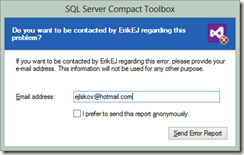
Enter your email address if desired, and I will contact you regarding the error, and click send:

clip_image009

I have also added an option to opt out of feature tracking:

image


Improvements

SQL Server tables displayed are properly sorted by schema.name:

clip_image010

Notifying user that 3.5 SP2 is required for many features to work - this has now become an issue on new Windows 8 installation with Visual Studio 2012 only, as SQL Server Compact 3.5 SP2 is not installed on these systems:

clip_image011

Click the red link:

clip_image012

As always, you can use the About box (blue question mark on the toolbar above) to see what SQL Server Compact components you have installed (notice that the Visual Studio 2012 Server Explorer does not support SQL Server Compact 3.5, so no DDEX provider in VS 2012):

clip_image013

Improved SQL Server DGML diagram, the DGML feature now works with AdventureWorks2012.

Improved object tree view performance, in particular for databases with many objects.

Bug fixes

SQL query editor button texts now visible with Visual Studio 2012 dark theme:

clip_image014

Merge Replication dialog fixed to work with "Windows Integrated Authentication":

clip_image015

Updated scripting API, with foreign key related bug fixes, and various performance improvements

Monday, January 7, 2013

SQL Server Compact Code Snippet of the Week #1 : locate the ROWGUIDCOL column in a table

During the next many weeks, I plan to publish a short, weekly blog post with a (hopefully) useful code snippet relating to SQL Server Compact. The code snippets will come from 3 different areas: SQL Server Compact T-SQL statements, ADO.NET code and samples usage of my scripting API.

The ROWGUIDCOL column property is defined like this in Books Online:

Indicates that the new column is a row global unique identifier column. Only one uniqueidentifier column per table can be designated as the ROWGUIDCOL column. The ROWGUIDCOL property can be assigned only to a uniqueidentifier column.

ROWGUIDCOL automatically generates values for new rows inserted into the table.

(You can also use a default of NEWID() to automatically assign values to uniqueidentifier columns)

The ROWGUIDCOL is used by Merge Replication, all Merge Replicated tables must have a ROWGUIDCOL column.

Enough talk, show me the code snippet:

SELECT column_flags, column_name, table_name 
FROM information_schema.columns
WHERE column_flags = 378 OR column_flags = 282


I am using the undocumented “column_flags” column to determine the ROWGUIDCOL column, and the reason for the 2 different values is that a uniqueidentifier column can be either NULL or NOT NULL.

Wednesday, December 19, 2012

Integrating Red Gate SmartAssembly in the SQL Server Compact Toolbox

In the next release of the SQL Server Compact Toolbox, which is currently available in an alpha release, I will start using Red Gate SmartAssembly for Error Reporting and quality improvement. In this blog post I will describe the few steps required to integrate SmartAssembly with the Visual Studio VISX build process and in code. Some of these steps are not well documented on the SmartAssembly support site, as in this case we are protecting a DLL file, not an .exe (the more common case), so I thought I would share my findings.

SmartAssembly is a .NET instrumentation tool, that offers centralised error reporting and feature usage tracking (it also offers various obfuscation features, but I am not using these), and includes a nice desktop client, that integrates all the features of the product in a single UI, including viewing your Error Reports and Feature Usage statistics.

image

MSBuild integration

Once you have downloaded SmartAssembly, you can create a new SmartAssembly project (.saproj file) – do this for your add-in DLL, and save the file. Then look at the useful instructions on this support page. You will need to make a change to the instructions on that page, and possibly also your .saproj file:

In your .csproj file (VISX Add-In project), change the SmartAssembly build task to run AfterCompile, not AfterBuild, like this, and add OverwriteAssembly="True" :

<Target Name="AfterCompile" Condition=" '$(Configuration)' == 'Release' ">   

<SmartAssembly.MSBuild.Tasks.Build OverwriteAssembly="True" ProjectFile="C:\Data\SQLCE\CodePlexTFS\TFS07\SqlCeToolbox\SqlCe35Toolbox\SqlCeToolbox.saproj" />

</Target>

Change the source file in you .saproj file to point to the DLL file in the obj folder, not the bin folder, like so:

<MainAssemblyFileName>.\obj\Release\SqlCeToolbox.dll</MainAssemblyFileName>

This will allow SmartAssembly to instrument your DLL after it has been built, but before it is added to the .VSIX file (which is a .zip file)


Invoking Error Reporting in Code

As the Toolbox is an add-in, I prefer not to catch any unhandled Visual Studio exceptions, but would still like to be able to report any errors occurring in the Toolbox, in order to be able to improve it. SmartAssembly easily allows you to to this.

Start by adding references to  SmartAssembly.ReportException.dll and SmartAssembly.ReportUsage.dll in the C:\Program Files\Red Gate\SmartAssembly 6\SDK\bin folder from your project.

Then in order to invoke Error Reporting, use:

SmartAssembly.ReportException.ExceptionReporting.Report(ex);


Then when a handled exception occurs, the user will see this dialog:

image

And to report usage use:

SmartAssembly.ReportUsage.UsageCounter.ReportUsage(feature);

Where feature is the name of the feature in question.


Hope you found it useful.

Thursday, November 29, 2012

SQL Server Compact Merge Replication Library alpha released

I have just published a new Codeplex project, that contains a library to help with SQL Server Merge Replication using SQL Server Compact 3.5 SP2.

This library simplifies the code and configuration to do Merge Replication from a SQL Server Compact 3.5 SP2 desktop client, with a number of useful helper methods.
Features:

  • Is intended for use from a WinForms or WPF application, and the Synchronize method runs async.
  • Implements best practices for optimal performance, and attempt to properly detect expired subscriptions, by throwing a PublicationMayHaveExpiredException.
  • Will create the database file for you as required, so an existing database file is not required.
  • Optionally logs sync status to a SyncLog table (which is a part of the publication)
  • Generate INSERT script in order to rescue local data in case of a disaster (for example publication expiry)
  • Validate a Publication, for example after initial Sync
  • Properly format a SqlCeException as a string to get all available error information
  • Source includes a demo form to test app.config parameters and see the library in action
using ErikEJ.SqlCeMergeLib;
using System.Data.SqlServerCe;
...
string sdfFile = System.IO.Path.Combine(Environment.GetFolderPath(Environment.SpecialFolder.MyDocuments), "MergeTest.sdf");
conn = new SqlCeConnection(string.Format("Data Source={0}", sdfFile));

DateTime syncDate = sync.GetLastSuccessfulSyncTime(conn);
textBox1.Text = "Last Sync: " + syncDate.ToString();

sync.Completed += SyncCompletedEvent;
sync.Progress += SyncProgressEvent;
sync.Synchronize(conn, 1002);

Other useful methods:
Generate INSERT script for the local database (for disaster recovery):

public string GenerateInsertScripts (
SqlCeConnection connection,
List<string> tableNames
)

Format a SqlCeException as a String:

public string ShowErrors (
SqlCeException e
)

Validate that the local database is properly Merge Replicated;

public bool Validate (
SqlCeConnection connection
)

Configuration:

<?xml version="1.0" encoding="utf-8" ?>
<configuration>
<appSettings>
<add key="InternetLogin" value=""/>
<add key="InternetPassword" value=""/>
<add key="InternetUrl" value="http://erik-pc/ssce35sync/sqlcesa35.dll"/>
<add key="Publication" value="PubPostCodes"/>
<add key="Publisher" value="Erik-PC\SQL2008R2"/>
<add key="PublisherDatabase" value="PostCodes"/>
<add key="PublisherLogin" value="sa"/>
<add key="PublisherPassword" value="pw"/>
<add key="UseNT" value="false"/>
</appSettings>
</configuration>

repl.jpg

Hope you will find it useful, and please post any bugs and suggestion via the Issue Tracker on CodePlex.


Note, that it appears that Merge Replication against SQL Server 2012 with SP1 or later is currently broken (but works with SQL Server 2012 RTM).

Tuesday, November 27, 2012

SQL Server Compact Toolbox 3.1.1 with support for Windows Phone 8 and VS 2012 released

Just a short note to let you know, that the SQL Server Compact Toolbox add-in has been updated beginning of this month to support the following new features:

Generation of a LINQ to SQL DataContext for Windows Phone 8 projects in Visual Studio 2012. (Like Windows Phone 7.5, Windows Phone 8 supports a so-called “Local Database”, which is a SQL Server Compact Database accessible only via LINQ to SQL). This feature will allow you to generate a Phone specific DataContext, I have blogged about this earlier as you can see under the heading ErikEJ on this page. 

image

In addition, the Toolbox is now able to use sqlmetal.exe on “clean” Windows 8 systems, with only Visual Studio 2012 Pro or higher installed.

Also note, that the Toolbox supports SQL Server Compact 3.5 database files even under VS 2012, despite the fact, that the VS 2012 Server Explorer no longer supports SQL Server Compact 3.5 (this requires the SQL Server Compact 3.5 SP2 desktop MSI to be installed, of course – download from here.

Tuesday, October 16, 2012

Tips and tricks for using SQL Server Compact with VB/VBA/VBScript/ASP

This may sound a bit old-school, and it probably is, but some developers of Visual Basic still find that SQL Server Compact is a compelling local database solution.

To use SQL Server Compact with VB, you must have the SQL Server Compact runtime MSI installed on the computer, as the only way to access SQL Server Compact from VB is via the OLEDB provider, that must be registered on the machine by the MSI installer.

To use the OLEDB provider, you need the provider name, and for SQL Server Compact, this is:

Version 3.0/3.1:  Microsoft.SQLSERVER.MOBILE.OLEDB.3.0

Version 3.5: Microsoft.SQLSERVER.CE.OLEDB.3.5

Version 4.0: Microsoft.SQLSERVER.CE.OLEDB.4.0

It my blog post here I describe how you can access and iterate a table from VBA.

XL Dennis has also blogged about the same subject.

Notice that you cannot access columns of type “image” using the OLEDB provider, let alone INSERT into these columns – I describe a workaround for the INSERT case in my blog post here.

As the database access from takes place via the OLEDB provider, for some connection string properties, make sure to use the ssce: variant, if available. So for example to access a password protected database file from VB/VBA, use this connection string format:

Data Source=mydb.sdf;ssce:database password=123

XL Dennis has also blogged about creating a SQL Server Compact database from VB/VBA.

In order to do UPDATE, INSERT and DELETE, you must construct the required SQL statements as strings, and simply execute them, using ADO.Connection .Execute method.

Finally, in my blog post here, I demonstrate that it is possible to use SQL Server Compact 4.0 from Classic ASP.

Hopefully, this collection of tips and tricks is enough to get you started with VBA/VB and SQL Server Compact.