Friday, October 25, 2013

SQL Server Compact Toolbox 3.6–Visual Guide of new features

After more than 210.000 downloads, version 3.6 (skipping version 3.5 to avoid confusion) of my SQL Server Compact Toolbox extension for Visual Studio 2013, 2012 and 2010 is now available for download. This blog post is a visual guide to the new features included in this release, many suggested by users of the tool via the CodePlex issue tracker


Table Builder

In order to improve the experience for Toolbox users, I have now started adding features to the Toolbox found in the Server Explorer tooling, starting with a Table Builder. This is due to the fact, that Server Explorer support in VS 2012 and VS 2013 is limited (in 2012 SQL Compact 4.0 only, and in VS 2013 none, where as Server Explorer in VS 2010 supports both 3.5 and 4.0).

To use the Table Builder, right click a database, and select Build Table:

image

Then specify the columns to be built, and click Script!

image

A CREATE TABLE script will then be displayed in the SQL editor. In the current version, it is not possible to modify an existing table, maybe next time?

If you have both VS 2012 and VS 2013, feel free to contact me for a way to re-enable Server Explorer support for SQL Server Compact 4.0 in VS 2013.

Report Viewer

You can now view the data in any table via the Microsoft Report Viewer, which also enables you to export data in Excel, Word and PDF format.

image

Right click any table, and select View Data as Report

image

You can right click the report (or use the Toolbar) to Print/Export the table data.

This featured is based on this Stackoverflow reply: http://stackoverflow.com/questions/267091/best-way-to-view-a-table-with-lots-of-columns

Generate Entity Framework 6 Entity Data Model (EDMX) in Visual Studio 2013

This feature is very similar to the existing feature for Visual Studio 2010, allowing you to do Database First development with SQL Server Compact and Entity Framework 6. The new implementation for Visual Studio 2013 takes advantage of assets from the version 6 Entity Framework designer, this includes using the included .tt files to code generate a DbContext and related POCO classes rather than a legacy ObjectContext. To use this feature, first install the EntityFramework.SqlServerCompact NuGet package in your project, and the simply right click the database you would like to generate the model for:

image

image

Then you will be presented with a very basic “Entity Data Model” dialog, which allows you to select which tables to include in the model, and to specify other relevant options:

image
Clicking OK will generate an EDMX file and releated .tt files etc, in the project based on the Entity Framework 6 designer way of doing this. image

Other improvements and bug fixes

Scripting: Improved parsing of SELECT statements
Scripting; Proper scripting of float and real values
Scripting: Fixed some schema diff scripts bugs
UI: Improved display of database size and space available
Integration: Improved VS 2013 RTM support

Monday, October 7, 2013

SQL Server Compact 4 desktop app with simple Private Deployment and LINQ to SQL

In this post I will describe a simplified approach to SQL Server Compact Private Deployment, for an overview blog post on Private Deployment with SQL Server Compact, see my blog post here.

By forcing your app to run using x86 always (Prefer 32-bit), which is the new default Platform target option  for apps targeting .NET Framework 4.5, deployment of SQL Server Compact with you app becomes simpler, but must follow different guidelines from what I have previously blogged about. (The same approach will also work with apps targeting .NET 4.0, just set the Platform target to x86 in the location shown below. And the same approach will also work with the SQL Server Compact 3.5 DLL files.)

image

To read more about the new default Platform target option introduced in .NET 4.5, see the MSDN documentation here, and the blog post here.

In addition, I will demonstrate how to use LINQ to SQL with SQL Server Compact 4.0, a low overhead, fast performing ORM.

For the sake of simplicity, and in order to focus attention on the private deployment aspects, I will demonstrate with a console application, but the same approach will also work for WinForms and WPF applications.

Before you get started, make sure you have the following installed:

1: Visual Studio 2010/2012/2013 Pro or higher 

2: SQL Server Compact Toolbox add-in (Install via Tools/Extensions in VS)

3: An existing SQL Server Compact database file, I will use Chinook, which you can download from here

4: The SQL Server Compact 4.0 SP1 runtime

(You could also use the free Visual Studio 2010/2012/2013 for Windows Desktop with the standalone SQL Server Compact Toolbox for 4.0, which also supports LINQ to SQL code generation)

With that in place, let us open Visual Studio and get started:

Create new console application

Go to File, New Project, and create a new Windows Console application. Make sure to set the target platform to 4.0 or newer.
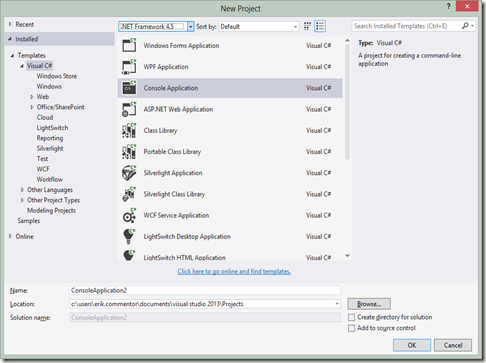
image

Include the SQL Server Compact binaries in your project

Now include the SQL Server Compact 4.0 binaries and ADO.NET Provider as content in your app. Copy C:\Program Files (x86)\Microsoft SQL Server Compact Edition\v4.0\Private\System.Data.SqlServerCe.dll to your project folder, and then copy all files and folders in C:\Program Files (x86)\Microsoft SQL Server Compact Edition\v4.0\Private\x86 also to your project folder.

In the Solution Explorer, select Show All Files, and include the new folder and the seven files just copied in the Project:

image

Now mark all the copied files (also the files in the Microsoft.VC9.CRT folder) and mark them as Content, Copy Always:

image

Finally, add a Reference to the System.Data.SqlServerCe.dll file in your project folder:

image

(Make sure to check the file location and the Version, should be 4.0.0.1)

Add your database file to the project

Make sure it is also Content, Copy Always – we use the”Database First” workflow here.

Generate the LINQ to SQL DataContext

Next,we will generate a LINQ to SQL DataContext class and related Table classes based on the database, so connect to the database in SQL Server Compact Toolbox, using the Add SQL Server Compact 4.0 Connection menu item:
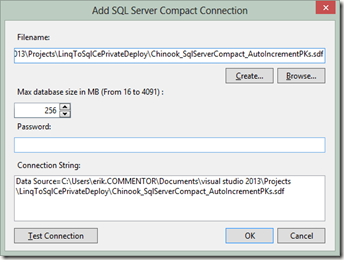
image

Then right click the database and select “Add LINQ to SQL DataContext to current project”:

image

(I am just using ChinookContext as Context name)

Click OK, and a DataContext class file will be added to your project, and the required reference to System.Data.Linq will be added to the project.

Now let us add some test code to the Main method in order to verify that everything works so far, so the Program.cs code looks like this:

using System;
using System.Data.SqlServerCe;

namespace LinqToSqlCePrivateDeploy
{
class Program
{
private const string
dbFileName = "Chinook_SqlServerCompact_AutoIncrementPKs.sdf";

private static string dbConnectionString =
string.Format("Data Source=|DataDirectory|{0};Max Database Size=4091", dbFileName);
static void Main(string[] args)
{
using (var connection =
new SqlCeConnection(dbConnectionString))
{
using (var context = new ChinookContext(connection))
{
//To log SQL statements, use:
//context.Log = Console.Out;
foreach (var album in context.Album)
{
Console.WriteLine(album.Artist.Name);
Console.WriteLine(album.Title);
}
}
}
Console.Read();
}
}
}


We can now access the database via the generated object model, and do not have to type SQL, but can use LINQ to query the database. In addition, we can update the database (INSERT, UPDATE, DELETE) via methods on the DataContext.

Notice that the DataContext must be constructed with a SqlCeConnection object, in order for LINQ to SQL to work with SQL Server Compact 4.0.

Deploy the database file

The final step will be done to ensure that the database file will be located in a writeable location on the users machine when deployed/installed. We will simply do this in code in order to not depend on any install actions and issues. In addition, we can do this without storing any connection strings in app.config, making the app more self-contained. We will use the same approach that I have already used in my blog post here, which takes advantage of the DataDirectory connection string macro.

private static void CreateIfNotExists(string fileName)
{
string path = Environment.GetFolderPath(Environment.SpecialFolder.ApplicationData);
// Set the data directory to the users %AppData% folder
// So the database file will be placed in: C:\\Users\\<Username>\\AppData\\Roaming\\
AppDomain.CurrentDomain.SetData("DataDirectory", path);

// Enure that the database file is present
if (!System.IO.File.Exists(System.IO.Path.Combine(path, fileName)))
{
//Get path to our .exe, which also has a copy of the database file
var exePath = System.IO.Path.GetDirectoryName(
new Uri(System.Reflection.Assembly.GetExecutingAssembly().CodeBase).LocalPath);
//Copy the file from the .exe location to the %AppData% folder
System.IO.File.Copy(
System.IO.Path.Combine(exePath, fileName),
System.IO.Path.Combine(path, fileName));
}
}


Remember to add a call to CreateIfNotExists as the first line in the Main method:

static void Main(string[] args)
{
CreateIfNotExists(dbFileName);


You can now use ClickOnce, XCopy or an Installer to deploy your app, with no other requirements than the target .NET Framework version.


What we have achieved:


- Simple, self contained deployment of a single user desktop app of any type to any .NET 4.0 or higher platform (not ARM, though)


- No need for special incantations in app.config


- RAD (Rapid App Development) “Database First” access to a well-performing, well-documented and simple ORM.


You can download the complete solution from here; http://sdrv.ms/179QBaa

Monday, September 23, 2013

SQL Server Compact Code Snippet #20 : change database password

The SqlCeEngine class (in the System.Data.SqlServerCe ADO.NET provider) includes a number of useful methods for handling global database chores, like verifying the integrity of the database, and shrink the database file. It also includes the Compact method, which creates a new database file (optionally in-place) of an existing database file. During this process, you can specify a number of database creation parameters, namely the collation order, the case sensitivity or the password of the database. In code:

    using (SqlCeEngine engine = 
new SqlCeEngine(@"Data Source=C:\temp\mysecretdb.sdf;Password=oldpassword"))
{
engine.Compact("Data Source=;Password=newpassword");
}


Notice the special data source key used, specifying that the new database should be created in-place.

Saturday, September 21, 2013

SQL Server Compact Code Snippet #19 : migrate a SQL Server database to SQL Compact

This snippet again demonstrates my SQL Server Compact scripting API, some initial guidance here. For a blog post describing the opposite direction, see this. Notice, that is you are scripting a SQL Server Compact 4.0 database file, you can install the required DLL files via NuGet (ErikEJ.SqlCEScripting).

This time I will demonstrate how to migrate a complete SQL Server (LocalDB/Express/Full) database to SQL Server Compact. The requirements are simply that the current user has read access to the SQL Server database. Then all tables, constraints, indexes and data will be moved to an empty SQL Compact database, all in just 6 lines of code:

using (IRepository serverRepository = new ServerDBRepository4(@"Data Source=.;Trusted_Connection=true;Initial Catalog=Chinook"))
{
string fileName = Path.GetTempFileName();
var generator = new Generator4(serverRepository, fileName);
generator.ScriptDatabaseToFile(Scope.SchemaData);

var helper = new SqlCeHelper4();
var sqlCeConnectionString = @"Data Source=C:\temp\newdb.sdf";
helper.CreateDatabase(sqlCeConnectionString);

using (IRepository sqlCeRepository = new DB4Repository(sqlCeConnectionString))
{
sqlCeRepository.ExecuteSqlFile(fileName);
}
}


The code requires the following using statements:


using ErikEJ.SqlCeScripting;
using System.IO;


The ServerDBRepository constructor simply requires any valid SQL Server ADO.NET connection string.


The ScriptDatabaseToFile creates a script file with all content of the database, and the ExecuteSqlFile method runs the script against a SQL Server database.


Notice the use of the SqlCeHelper4 class, which creates an empty database file.

Thursday, September 5, 2013

Primeworks, supplier of tools for SQL Server Compact, is closing, making all products free, open source

João Paulo Figueira, owner of Primeworks, http://primeworks-mobile.com/, just announced that the company is closing. In a blog posting João announced yesterday: “The business volume has decreased so steeply that it can no longer support the product development and support.”

Primeworks offers complete set of excellent tools for working with all versions of SQL Server Compact database files, both on the desktop and directly on a Windows Mobile/CE device.

Luckily, the tools will continue to be available for download, and eventually even become open source.  João states: “In the very near future, all products will be removed from our online business platform and the licensing requirements removed from the distribution installers. All products will be essentially free (copyrights retained). Next, I will devote some time to publish all the source code and convert these products into open source projects.”

I am sorry to see Primeworks leave the market, but very happy that the excellent tools will now become available for free.

Monday, August 26, 2013

FAQ: Why is opening my SQL Server Compact database slow?

You may experience, that opening a connection to a SQL Server Compact database file using SqlCeConnection.Open() (or doing this via EntityFramework or LINQ to SQL) can be unexpectedly slow (up to 30 seconds, for example). In this blog post I will detail the known reasons for this to occur, and outline solutions and workarounds.

1: The database has been created on another platform

One of the most common issues is that the database file has been created and populated on another platform than the one where the app is running .Open(). For example: a database file is included with the app, a database file is downloaded from a server or similar. Different platforms are for example Windows 8 versus Windows XP, and Windows 7 versus Windows Mobile. Notice, that Windows XP, Server 2003 and Windows Mobile are compatible platforms. And Windows 8 and Windows Phone appear t be compatible in most cases also. The product team did a blog post about the issue many years ago, but the issue is otherwise poorly documented, and therefore pops up again and again. There is no solution to the issue, only workarounds.

Workarounds:
Create the database file on the platform after app installation, using for example my scripting APIs.
Include a database file per target platform, that is already built/opened on the target platform (in particular an issue for read-only databases, see my blog post here)
- Avoid indexes with string based keys (probably not possible in most cases)

2: The ACL (Access Control List) on the RSA folder is corrupt

This issue appears to happen only on Windows XP system and only with encrypted databases. The ACL on the C:\Documents and Settings\All Users\Application Data\Microsoft\Crypto\RSA\MachineKeys folder are corrupted, and users are unable to access file in this central folder.

Solution: Reset the ACL to allows all users Read access, either using the UI or via the xcacls command line tool.

3: Invalid Internet Proxy configuration

This appears to occur for SQL Server Compact 4.0 on any system with an invalid proxy configuration, as a Certificate Revocation List check is run each time the engine is loaded (which happens on the first call to .Open()).

Solution: To avoid this delay, which probably affects any signed app on the system in question, you must fix the configuration or disable the check. The check can be disabled via UI or via registry settings, as described here.

Hope this helps you troubleshooting slow database opening with SQL Server Compact.

Friday, July 19, 2013

SQL Server Compact Code Snippet of the Week #18 : handling SqlCeExceptions

Often I see developers complain that the error messages from SQL Server Compact does not provide any information about the error (in SqlCeEcxeption.Message). This is due to to way that the SqlCeException object is shaped, as it contains a SqlCeErrors collection and other properties you must inspect in order to get “full disclosure” on the error information. Getting this complete information of course helps a lot in troubleshooting the root causes for the errors. (The exact same pattern applies to SqlException, which also has a collection of SqlCeErrors)

Remember in your error handling to catch any specialized exceptions (like SqlCeException) before the more general Exception object:

            try
{
//Data access code here
}
catch (SqlCeException scx)
{ }
catch (Exception ex)
{ }


For getting full error information, I use the code below:

        public static string ShowErrors(System.Data.SqlServerCe.SqlCeException e)
{
System.Data.SqlServerCe.SqlCeErrorCollection errorCollection = e.Errors;

StringBuilder bld = new StringBuilder();
Exception inner = e.InnerException;

if (!string.IsNullOrEmpty(e.HelpLink))
{
bld.Append("\nCommand text: ");
bld.Append(e.HelpLink);
}

if (null != inner)
{
bld.Append("\nInner Exception: " + inner.ToString());
}
// Enumerate the errors to a message box.
foreach (System.Data.SqlServerCe.SqlCeError err in errorCollection)
{
bld.Append("\n Error Code: " + err.HResult.ToString("X", System.Globalization.CultureInfo.InvariantCulture));
bld.Append("\n Message : " + err.Message);
bld.Append("\n Minor Err.: " + err.NativeError);
bld.Append("\n Source : " + err.Source);

// Enumerate each numeric parameter for the error.
foreach (int numPar in err.NumericErrorParameters)
{
if (0 != numPar) bld.Append("\n Num. Par. : " + numPar);
}

// Enumerate each string parameter for the error.
foreach (string errPar in err.ErrorParameters)
{
if (!string.IsNullOrEmpty(errPar)) bld.Append("\n Err. Par. : " + errPar);
}
}
return bld.ToString();
}