Monday, April 23, 2012

Preview of SQL Server Compact Toolbox version 3.0 now available

This short blog post lists the main new features in version 3, with pointers to the menu location of the new features in the upcoming version 3.0 of my SQL Server Compact Toolbox add-in for Visual Studio. Please go ahead and download the preview, and let us know what you think.

New features

Extensive support for Sync Framework 2.1, including Provisioning, Deprovisioning, Code Generation, Local Database Cache Code Generation and Explorer tree integration - thanks to great effort from fellow MVP JuneT (blog | twitter)

image
(Root context menu)

image
(Database context menu)

Generate desktop LINQ to SQL classes both for 3.5 and 4.0 databases (see this blog post for more info)

image
(Database context menu)

Migrate a SQL Server Compact database directly to SQL Server (LocalDB/Express)

image
(Database context menu)

Script only data (with "correct" table ordering, using QuickGraph DataSetGraph with Topological Sort)
image
(Database context menu)

Add own Compact 3.5 based connections when using Visual Studio 11 beta

WP DataContext - option to include a ConnectionStringBuilder class

image

Go and try it out, and let us know what you think!

Thursday, April 12, 2012

Using LINQ to SQL with SQL Server Compact 4.0 (yes, you can!)

This question on StackOverflow more than hinted at the fact, that it was possible to use LINQ to SQL with SQL Server Compact 4.0. (Despite “rumours” of the opposite). I decided to find out, if this would work, and what it required tooling wise. (Please be aware that this is not supported by Microsoft). The SQLMetal.exe command line utility, that is used to generate the LINQ to SQL DataContext and related table classes is hardcoded via a string constant to work with 3.5. But using my command line utilities in combination with SQLMetal would allow you to create the classes based on a 4.0 database file. Using a batch (cmd) file similar to the following:

   1:  set sdf=C:\projects\ChinookPart2\Chinook40.sdf
   2:  set class=Chinook
   3:   
   4:  c:\data\sqlce\bin\exportsqlce40 "Data Source=%sdf%" c:\temp\temp.sqlce schemaonly
   5:  del c:\temp\%class%.sdf
   6:   
   7:  c:\data\sqlce\sqlcecmd -d"Data Source=C:\temp\%class%.sdf" -e create -n
   8:  c:\data\sqlce\sqlcecmd -d"Data Source=C:\temp\%class%.sdf" -i c:\temp\temp.sqlce –n
   9:   
  10:  sqlmetal /code:%class%.cs C:\temp\%class%.sdf


In line 4, the exportsqlce40 utility is used to export the schema (table definitions) from the 4.0 based file.


In line 7, and empty 3.5 file is created, and in line 8 it is populated with the generated schema.


Finally, in line 10, sqlmetal is run against this newly created 3.5 file, and generates the required classes.


To test that this worked, I created a Console project, added a reference to System.Data.Linq and System.Data.SqlServerCe.dll version 4.0.0.0. I also included the Chinook.cs file generated above in the project.


Then I used the code below to test that I could access the database via LINQ to SQL:

using System;
using System.Data.SqlServerCe;
using System.Linq;

namespace ConsoleApplication1
{
class Program
{
static void Main(string[] args)
{

using (SqlCeConnection conn = new SqlCeConnection(@"Data Source=C:\projects\Chinook\Chinook40.sdf"))
{
using (Chinook db = new Chinook(conn))
{
db.Log = Console.Out;
var list = db.Album.ToList();
if (list.Count > 0)
System.Diagnostics.Debug.Print("It works!");
}
}

}
}
}


NOTE: Notice that the Chinook DataContext class is initialized with a SqlCeConnection object, I could not make it work with a full connection string, or the name of an existing connection string setting in app.config.


In the next release of the SQL Server Compact Toolbox, the code generation process has been incorporated, allowing you to very easily add a the LINQ to SQL classes to your project, both based on 3.5 AND 4.0 database files.

New menu item on the database context menu:


image

New dialog:
image

Friday, April 6, 2012

Windows Phone Local Database tip: Exploring DELETE performance and a “Bug Alert”

In the previous instalments in this series of Windows Phone Local Database tips, I have been exploring SELECT, INSERT, UPDATE, CREATE DATABASE and Encryption. Now the time has come to have a closer look at DELETE, and investigate how they can be optimized (if possible). I will look at deleting multiple rows in a single call to SubmitChanges.

To test this, I will be using the code below, and as usual use the Chinook sample database.

//New database from embedded resource
using (ChinookContext db = new ChinookContext(ChinookContext.ConnectionString))
{
if (db.DatabaseExists())
db.DeleteDatabase();

db.CreateIfNotExists();
}

using (ChinookContext db = new ChinookContext(ChinookContext.ConnectionString))
{

try
{
//db.LogDebug = true;

var list = db.InvoiceLine.Take(100);

db.InvoiceLine.DeleteAllOnSubmit(list);

System.Diagnostics.Stopwatch sw = new System.Diagnostics.Stopwatch();
sw.Start();

db.SubmitChanges();

sw.Stop();
System.Diagnostics.Debug.WriteLine(sw.ElapsedMilliseconds);
}
catch (Exception ex)
{
System.Diagnostics.Debug.WriteLine(ex.ToString());
}
}


Running this code using the InvoiceLines table from the Chinook sample database will result in 100 calls to a DELETE statement like this:


DELETE FROM [InvoiceLine] WHERE ([InvoiceLineId] = @p0) AND ([InvoiceId] = @p1) AND ([TrackId] = @p2) AND ([UnitPrice] = @p3) AND ([Quantity] = @p4)
-- @p0: Input Int32 (Size = 4; Prec = 0; Scale = 0) [100]
-- @p1: Input Int32 (Size = 4; Prec = 0; Scale = 0) [19]
-- @p2: Input Int32 (Size = 4; Prec = 0; Scale = 0) [581]
-- @p3: Input Decimal (Size = 19; Prec = 10; Scale = 2) [0.99]
-- @p4: Input Int32 (Size = 4; Prec = 0; Scale = 0) [1]


Notice that all columns are included in the WHERE statement, to check for concurrency conflicts (you can argue if this is really required when deleting). The 100 deletes runs in 320 ms on the emulator.


Now let us try to add a rowversion column to the InvoiceLines table, like we did for the UPDATE testing, and see if this has any effect.


You can also use the new feature in the SQL Server Compact Toolbox, which will allow you to add rowversion columns to all your tables, for the benefit of UPDATE and maybe also DELETE statements.


image


Let us try to run the same test code again.


Now the SQL statement looks like this, indicating that the query processor is bypassed, unlike in the statements above.


-- CURSOR BASED INDEX DELETE [InvoiceLine].[PK_InvoiceLine] (
--     InvoiceLineId: [1]
--    )
-- EQUALITY CHECK [versioncolumn], [System.Byte[]] = [System.Byte[]]


The time to perform the 100 DELETE statements is now down from 320 ms to under 70 ms, a significant improvement.


BUG ALERT!


If you attempt to take advantage of rowversion columns in an existing database, make sure that the table in question does not have more indexes that cover the primary key columns. If you have that, your SubmitChanges statement will “bomb out” your app.


image


For example the Album table in Chinook has a PK_Album index and PFK_Album index, that both are indexes on the AlbumId column. DROP the PFK_Album index in this case (you can use the new Index context menu option in the Toolbox to do that).


Hope you found this useful.

Thursday, March 29, 2012

SQL Server Compact Toolbox hits 100.000 downloads–new release planned

My SQL Server Compact Toolbox add-in for Visual Studio 2010 and 11 beta has now had more than 100.000 downloads. (Actually, more than 105.000, but who’s counting.)

Thanks to all the users of this tool, and your continous feedback. I always think that the most recent release will be the last, but I am already perparing for the next relase, which will add features like:

- Provision a 3.5 database for Sync Framework
- Ability to Migrate to a SQL Server/Express/LocalDB database in a single click (like what you can do with WebMatrix, but from within Visual Studio)
- Support for SQL Server Compact 3.5 connections with Visual Studio 11 beta (to support Windows Phone users and others)
- Option to add a ConnectionStringBuilder class to Windows Phone projects
- When exporting table data, the tables are now ordered topologically
- The Server based DGML files now respect schemas
- Server date and datetime2 columns are now converted to datetime

And in connection with the MVP Summit I got the opportunity to appear on the Visual Studio Toolbox show on Channel 9, where I demo some of the Toolbox features. Maybe you will discover features you did not know about during the demo.

Thursday, March 8, 2012

Windows Phone Local Database tip: Working with encrypted database files

SQL Server Compact on Windows Phone supports encryption of the database file. By specifying a password on the ConnectionString during encryption and subsequent openings, the contents of the database file will be encrypted.
Beware that the encryption will degrade database performance, due to the extra processing required to decrypt and encrypt data.
Also keep in mind when using encryption, that unless you protect your connection string (the password), anyone that knows it can open the database file.

Some Phone developers (see this forum post, for example) have encountered issues when moving databases from device to desktop and vice versa, when encryption is involved. In this blog post I will try to explore what can and cannot be done in this respect.

From the root context menu in the SQL Server Compact Toolbox, select “Add 3.5 connection” and select Create:

image

Specify a password of “zyx” and click OK. Now we have a connection to a desktop encrypted database file.

Open the SQL Editor, and create a basic table:

CREATE Table Test
(
Id int PRIMARY KEY,
Data nvarchar(10)
);

Now create a Windows Phone 7.1 Application, and add the database file from above as Content:

image

Right click the database connection in the SQL Server Compact Toolbox, and select “Add Windows Phone DataContext…” and click OK, the WP7EncryptContext.cs file has now been added to the project.

Add a reference to System.Data.Linq, and compile the project.

Add a button called “Connect”, and add a click event handler, with this code:

            using (WP7EncryptContext db = new WP7EncryptContext(WP7EncryptContext.ConnectionStringReadOnly + ";Password=zyx"))
{
var list = db.Test.ToList();
}


Now run the app in the emulator by pressing F5 (debug):


image


Obviously the desktop encryption is not compatible with the device database engine!


Now remove the database file from the project, and create the database file in isolated storage – change the click event handler code:

using (WP7EncryptContext db = new WP7EncryptContext(WP7EncryptContext.ConnectionString + ";Password=zyx"))
{
db.CreateIfNotExists();
var list = db.Test.ToList();
var test = new Test();
test.Id = 2;
test.Data = "ErikEJ";
db.Test.InsertOnSubmit(test);
db.SubmitChanges();

}


Now the database will be created in Isolated Storage on the device. Run with F5 again, and no errors will occur. And we have “pre-populated” the database with a single row. Let’s try to move this database file to the desktop, I use Windows Phone Power Tools from CodePlex to do this:


image 


When you add a connection to the file form the device, and click “Test Connection”, you will get this error message:


image


We already know that some version 4.0 features have been made available in the 3.5 Windows Phone database engine, like support for OFFSET/FETCH to allow paging. Has the enhanced version 4.0 encryption also been move to the device?


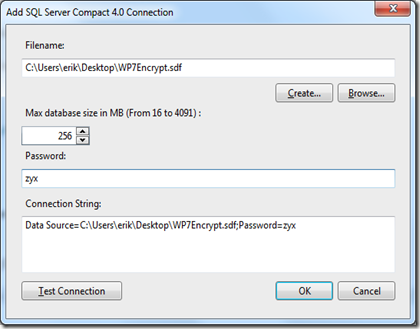
In the Toolbox, select “Add 4.0 Connection” and try to connect to the database from the device:

image


(Remember to specify the password!)


image
Reply Yes! And now we can browse and inspect both schema and data in the file – keep in mind that this file cannot be moved back to the device.


image


Now, GET the file again from the device via the Power Tools, and add the new copy to the project again, also as Content (as above, but the database file comes “pre-populated” from the device.)


Again, change the button click event handler as follows:

using (WP7EncryptContext db = new WP7EncryptContext(WP7EncryptContext.ConnectionStringReadOnly + ";Password=zyx"))
{
var list = db.Test.ToList();
if (list.Count > 0)
MessageBox.Show("It works " + list[0].Data);

}


Conclusions:


You CANNOT:


- Use a desktop encrypted database on the device
- Open a device encrypted database on the desktop


You CAN:


- Prepopulate an encrypted database (but only on a device)
- Convert a device encrypted database to 4.0 format on the desktop, and browse it.


Credits: Thanks to Marc-Anthon Flohr for prompting me to write this blog post. His overview is nice, although his conclusions are slightly different.

Friday, March 2, 2012

SQL Server Compact 4.0 SP1 CTP1 available

(Nice short name!) SQL Server Compact 4.0 SP1 CTP1 is now available for download: http://www.microsoft.com/download/en/details.aspx?id=29037 – is is also installed with Visual Studio 11 Ultimate beta. Installing this .MSI will replace your current SQL Server Compact 4.0 binaries in Program Files, and change the version to 4.0.8854.1.

No blog post or KB article yet, I will update this post when they become available. I the meantime, I have skimmed though the code in the ADO.NET provider, which reveals the following changes (all is just guesses, and it is beta software, of course):

New connection string keyword: “File Access Retry Timeout” – will reattempt connection open from 0 – 30 seconds, with a default value of 0.

Improved local C++ runtime verification.

SqlCeConnection.GetSchema bug fixes

SqlCeParameter.Add(String parameterName, Object value) has been deprecated.  Use AddWithValue(String parameterName, Object value) instead.

According to this thread, this bug has been fixed: Getting exception "The data area passed to a system call is too small." in SQL Server Compact 4

Monday, February 27, 2012

Migrating databases between SQL Server and SQL Server Compact

In this post, I will try to give an overview of the free tools available for developers to move databases from SQL Server to SQL Server Compact and vice versa. I will also show how you can do this with the SQL Server Compact Toolbox (add-in and standalone editions).

Moving databases from SQL Server Compact to SQL Server

This can be useful for situations where you already have developed an application that depends on SQL Server Compact, and would like the increased power of SQL Server or would like to use some feature, that is not available on SQL Server Compact. I have an informal comparison of the two products here. Microsoft offers a GUI based tool and a command line tool to do this: WebMatrix and MsDeploy. You can also use the ExportSqlCe command line tool or the SQL Server Compact Toolbox to do this. To use the ExportSqlCE (or ExportSqlCE40) command line, use a command similar to:

ExportSQLCE.exe "Data Source=D:\Northwind.sdf;" Northwind.sql

The resulting script file (Northwind.sql) can the be run against a SQL Server database, using for example the SQL Server sqlcmd command line utility:

sqlcmd -S mySQLServer –d NorthWindSQL -i C:\Northwind.sql

To use the SQL Server Compact Toolbox:

Connect the Toolbox to the database file that you want to move to SQL Server:

image

Right click the database connection, and select to script Schema and Data:

image

Optionally, select which tables to script and click OK:

image

Enter the filename for the script, default extension is .sqlce:

image

Click OK to the confirmation message:

image

You can now open the generated script in Management Studio and execute it against a SQL Server database, or run it with sqlcmd as described above.

Moving databases from SQL Server to SQL Server Compact

Microsoft offers no tools for doing this “downsizing” of a SQL Server database to SQL Server Compact, and of course not all objects in a SQL Server database CAN be downsized, as only tables exists in a SQL Server Compact database, so no stored procedures, views, triggers, users, schema and so on. I have blogged about how this can be done from the command line, and you can also do this with the SQL Server Compact Toolbox (of course):

From the root node, select Script Server Data and Schema:

image

Follow a procedure like the one above, but connecting to a SQL Server database instead.

The export process will convert the SQL Server data types to a matching SQL Server Compact data type, for example varchar(50) becomes nvarchar(50) and so on. Any unsupported data types will be ignored, this includes for example computed columns and sql_variant. The new date types in SQL Server 2008+, like date, time, datetime2 will be converted to nvarchar based data types, as only datetime is supported in SQL Server Compact. A full list of the SQL Server Compact data types is available here.