Monday, July 30, 2012

The state and (near) future of SQL Server Compact

I recently got asked about the future of SQL Server Compact, and in this blog post I will elaborate a little on this and the present state of SQL Server Compact.

Version 4.0 is the default database in WebMatrix ASP.NET based projects, and version 2 of this product has just been released.

There is full tooling support for version 4.0 in Visual Studio 2012, and the “Local Database” project item is a version 4.0 database (not LocalDB). In addition, Visual Studio 2012, coming in august, will include 4.0 SP1, so 4.0 is being actively maintained currently. Entity Framework version 6.0 is now open source, and includes full support for SQL Server Compact 4.0. (Entity Framework 6.0 will release “out of band” after the release of Visual Studio 2012).

The latest release (build 8088) of version 3.5 SP2 is fully supported for Merge Replication with SQL Server 2012 (note that "LocalDB" cannot act as a Merge Replication subscriber), and Merge Replication with Windows Embedded CE 7.0 is also enabled.

On Windows Phone, version 3.5 is alive and well, and will of course also be included with the upcoming Windows Phone 8 platform. Windows Phone 8 will also include support for SQLite, mainly to make it easier to reuse projects between Windows Phone 8 and Windows 8 Metro.

On WinRT (Windows 8 Metro Style Apps), there is no SQL Server Compact support, and Microsoft is currently (doubt that will change) offering SQLite as an alternative. See Matteo Paganis blog post also: http://wp.qmatteoq.com/using-sqlite-in-your-windows-8-metro-style-applications

So, currently SQL Server Compact is available of the following Microsoft platforms: Windows XP and later, including ASP.NET, Windows Phone, Windows Mobile/Embedded CE.

On the other hand, SQL Server Compact is not supported with: Silverlight (with exceptions), WinRT (Windows 8 Metro Style Apps).

So I think it is fair to conclude that SQL Compact is alive and well. In some scenarios, SQL Server "LocalDB" is a very viable alternative, notice that currently LocalDB requires administrator access to be installed (so no "private deployment"). See my comparison here.

Tuesday, June 19, 2012

HOW TO: Connect to SQL Server Compact from F#

I have previously blogged about connection to SQL Server Compact from other technologies than pure ADO.NET:

ASP Classic

VBA (Excel)

Silverlight

PowerShell

F# version 3.0 in Visual Studio 2012 makes it relatively easy to connect to a SQL Server Compact database (I am NOT a F# programmer, and even I could connect, so it must be very easy!).

In this blog post I will show the required steps to connect to a SQL Server Compact 4.0 database file and start using it via Entity Framework with F#.

In VS 2012 (currently RC), create a new F# application:

image

Now add references to the required libraries (Entity Framework and F# Type Providers):

FSharp.Data.TypeProviders
System.Data.Entity
System.Data.Linq

image

I order to access SQL Server Compact via EF 4 from F#, and Entity Data Model file (.EDMX) file is required. And the EDMX Wizard and Designer only works with C# and VB.NET projects, so to create this, add a Visual C# Console project to the solution:

image

Now add the EDMX file to this project, right click the project, select Add, New Item…, Data,

image

Select generate from database, and point to the desired SQL Server Compact 4.0 database.

Just say no:

image

The Console project now contains an EDMX file, and a useful connection string in app.config.

Now go back to the F# project clear program.fs, and add the following “using” statements:

open System
open System.Data.Linq
open System.Data.EntityClient
open Microsoft.FSharp.Data.TypeProviders


Grab the connectionString value from the console project app config, and add this line:

let internal connectionString = "metadata=res://*/;provider=System.Data.SqlServerCe.4.0;provider connection string='data source=C:\\Data\\SQLCE\\Test\\nw40.sdf';"


Notice the changes to the provider connection string - =" has been change to single quote, and backslashes have been escaped.


Now add the EDMX file from the Console project to the F# project as Content:


image


You can now initialize the EF type provider like so:

type internal edmx = EdmxFile<"NWModel.edmx">


And start using the context like this:

let internal context = new edmx.nw40Model.nw40Entities(connectionString)

let internal res = query { for supplier in context.Suppliers do select supplier }

res|> Seq.iter (fun supplier -> printfn "%s" supplier.Company_Name)

let wait = Console.ReadKey()

Friday, May 25, 2012

Private deployment of SQL Server Compact 3.5 SP2

The information found in the official documentation is not very extensive, and this blog post hopes to extend on the information found there. I have already blogged about private deployment with SQL Server Compact 4.0, and have an overview post here. 

SQL Server Compact 3.5 SP2 requires the following software:

The OS must be Windows XP SP3 or higher:

For applications targeting .NET 3.5 SP1, no additional software is required.

For applications targeting .NET 4.0, either .NET Framework 3.5 SP1 or the VC++ 2005 SP1 redistributable (for x86 and/or x64) is required.

Make sure the 3.5 SP2 runtime is properly installed, on x64 machines you must install both the x86 and x64 runtimes.

Let us assume that the requirements above are fulfilled (notice that Windows 7 includes .NET 3.5 SP1). So what else is required – let’s make a Console app and find out! Our goal is to create an application, that runs without SQL Server Compact 3.5 SP2 already installed, on both x64 and x86 systems. Notice that the instructions below works, no matter if your application targets “x86” (the 32 bit .NET Framework on all platforms, “Any CPU” (either the 32 or 64 bit .NET Framework), or x64 (the 64 bit Framework exclusively).

In Visual Studio, create a new Console project:
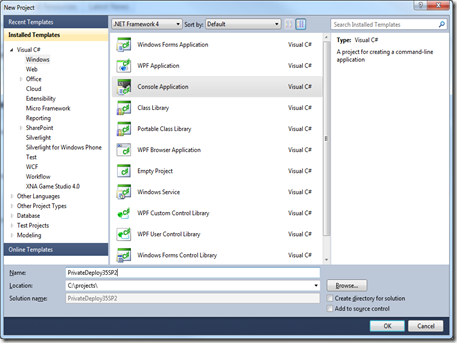
image

Now we must include the unmanaged SQL Server Compact C++ runtime files, each set of files in their own folder, which are platform specific. So create 2 folders in the project, one named x86 for the 32 bit files, and one named AMD64 (not x64!) for the 64 bit files.
NOTE: This convention, based on the value of the PROCESSOR_ARCHITECTURE environment variable is a special SQL Server Compact feature.

image 

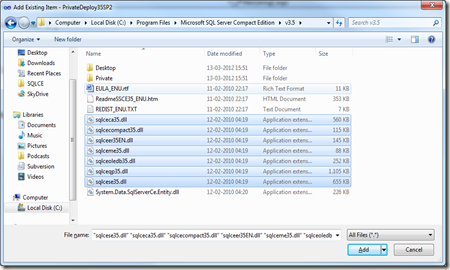
Now we must locate the required files. If you are using a 32 bit machine, only the 32 bit files are installed on your machine, and you must manually extract the 64 bit files to a folder as described here. I am using (like most these days) a x64 machine, and it has the  most recent files for both platforms already installed. Make sure that all files you include have the exact same file version, or you will fail. The 3.5 SP2 file version is 3.5.8080.0, you can view the file version in Windows Explorer.

The files in the “C:\Program Files” folder are all 64 bit files, and the files in the “C:\Program Files (x86)” folder are all 32 bit files (on x64 systems)

The files you need to add are:
sqlceca35.dll
sqlcecompact35.dll
sqlceer35EN.dll
sqlceme35.dll
sqlceoledb35.dll
sqlceqp35.dll
sqlcese35.dll

So, add the files from C:\Program Files\Microsoft SQL Server Compact Edition\v3.5 to the AMD64 project folder, using Add, Existing Item (make sure to change the filter to “All files”):
image

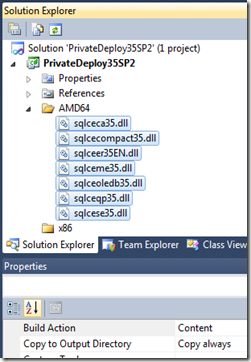
Make sure all files are included with Build Action = Content, and Copy to Output Directory = Copy Always:
image

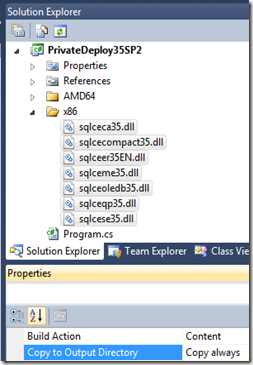
Then add files from C:\Program Files (x86)\Microsoft SQL Server Compact Edition\v3.5 to the x86 project folder, in the same way:
image

Finally, add the ADO.NET provider (System.Data.SqlServerCe.dll) to the project root, add this file form the C:\Program Files\Microsoft SQL Server Compact Edition\v3.5\Private (!) folder. Also set this file as Content, Copy Always:
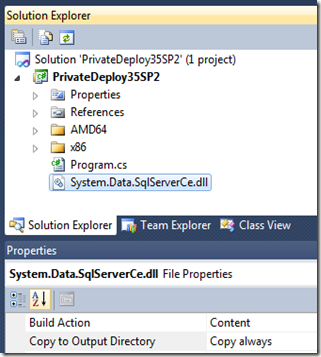
image

Now add a reference to the ADO.NET provider in the root project folder:
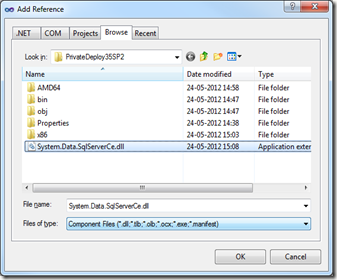
image

Make sure the Version (Assembly Version) is 3.5.1.50, that indicates that it is the correct file:
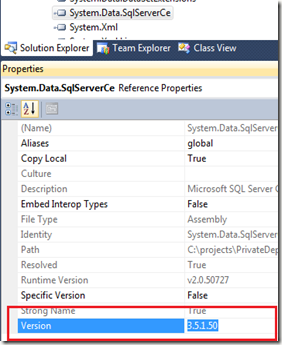
image

Now build the project, and look in the bin/debug folder, to make sure all files are copied with the project output. You can now test that private deployment works either by uninstalling the 3.5 SP2 runtimes or on a PC without the runtimes installed.

If you are using only ADO.NET “Classic” (no LINQ to SQL or Entity Framework), this is all you need for private deployment. If you initialize a LINQ to SQL DataContext with a SqlCeConnection object, as I describe here, no additional configuration is required.

If you depend on the DbProvider API (LINQ to SQL and Entity Framework does), you must add the following to your project’s app.config:

<?xml version="1.0" encoding="utf-8"?>
<configuration>
<system.data>
<DbProviderFactories>
<remove invariant="System.Data.SqlServerCe.3.5" />
<add
name="Microsoft SQL Server Compact Data Provider 3.5"
invariant="System.Data.SqlServerCe.3.5"
description=".NET Framework Data Provider for Microsoft SQL Server Compact"
type="System.Data.SqlServerCe.SqlCeProviderFactory, System.Data.SqlServerCe, Version=3.5.1.50, Culture=neutral, PublicKeyToken=89845dcd8080cc91"
/>
</DbProviderFactories>
</system.data>
</configuration>

UPDATE Feb 2013: Entity Framework private deployment is ONLY supported with Entity Framework 1.0, so below will not work in VS 2010/VS 2012 (EF 4.0 and EF 5.0)


If you use Entity Framework, you must add the C:\Program Files\Microsoft SQL Server Compact Edition\v3.5\Private\System.Data.SqlServerCe.Entity.dll to your project root as content, and have a configuration like the following (as described by the SQL Compact Team here)

<?xml version="1.0" encoding="utf-8"?>
<configuration>
<system.data>
<DbProviderFactories>
<remove invariant="System.Data.SqlServerCe.3.5" />
<add name="Microsoft SQL Server Compact Data Provider 3.5" invariant="System.Data.SqlServerCe.3.5" description=".NET Framework Data Provider for Microsoft SQL Server Compact" type="System.Data.SqlServerCe.SqlCeProviderFactory, System.Data.SqlServerCe, Version=3.5.1.50, Culture=neutral, PublicKeyToken=89845dcd8080cc91" />
</DbProviderFactories>
</system.data>
<runtime>
<assemblyBinding xmlns="urn:schemas-microsoft-com:asm.v1">
<dependentAssembly xmlns="">
<assemblyIdentity name="System.Data.SqlServerCe" publicKeyToken="89845dcd8080cc91" culture="neutral" />
<bindingRedirect oldVersion="3.5.1.0-3.5.1.50" newVersion="3.5.1.50" />
</dependentAssembly>
</assemblyBinding>
</runtime>
</configuration>


Hope this was useful!

Wednesday, May 16, 2012

SQL Server Compact Toolbox 3.0–Visual Guide of new features

After more than 110.000 downloads, version 3.0 of my free, open source SQL Server Compact Toolbox extension for Visual Studio 2010 is now available for download. This blog post is a visual guide to the new features included in this release, many suggested by users of the tool via the CodePlex issue tracker

Extensive support for Sync Framework 2.1

Thanks to a fantastic effort from fellow MVP June Tabadero (blog | twitter), extensive support for Sync Framework 2.1 has been added to the Toolbox, including Provisioning, Deprovisioning, Code Generation, Local Database Cache Code Generation and Explorer tree integration. You can read a nice walkthrough of the features in June’s blog post here. Notice that you will need to install the Sync Framework 2.1 bits for any of these features to work, you can download from here. June also recently blogged about using SQL Server Compact 4.0 with Sync Framework here.

clip_image002

Generate desktop LINQ to SQL classes both for 3.5 and 4.0 databases

I  decided to add the option to generate LINQ to SQL desktop classes, as I recently discovered that you can actually use LINQ to SQL with SQL Server Compact 4.0 (though NOT supported in any way by Microsoft). Read the blog post before you start using LINQ to SQL with 4.0.

clip_image003

clip_image005

Migrate a SQL Server Compact database directly to SQL Server (LocalDB/Express)

As you may know, the Toolbox already has features that allow you to generate a script of a SQL Server Compact database, and run it against a SQL Server database. But this release includes a feature to simplify this process, by not only generating a script, but also immediately executing it against a SQL Server database connected via Server Explorer.

clip_image006

clip_image007

Script only data (with "correct" table ordering)

Due to the increasing number of Database context menu items, I have moved all the script options to a separate “Script Database” sub-menu:

clip_image009

I have also added “Script Database Data”, which scripts only the data (!), sorted correctly by using the QuickGraph topological sorting of a DataSet.

WP DataContext - option to include ConnectionStringBuilder class

I have added the option to also have a ConnectionStringBuilder class generated for Windows Phone, to help constructing valid Windows Phone connection strings, with the limited amount of advanced options available on Windows Phone.

Other improvements

Scripting API fixes:
Tables are now ordered by topological sort when scripting entire database.
Data scripting now uses DbDataReader (or speed and to avoid some OOM issues)
“date” and “datetime2” SQL Server values are converted to “datetime” by default.
SQL scripts with DGML no longer generated.
Server based DGML now includes schema
Duplicate Execution plans fixed.
Improved script execution

Monday, May 7, 2012

Visual Studio 11 beta - Tooling for SQL Server Compact

Visual Studio 11 beta includes SQL Server Compact 4.0 SP1 CTP1, as I blogged about here. In this post, I will describe in greater detail the tooling support included with Visual Studio 11 beta. Notice the Visual Studio 11 is in beta, and things can change before release.

image

Visual Studio 11 beta only supports SQL Server Compact 4.0 in Server Explorer and other tools, so no longer support for 3.5 SP2, for development with that, you can still reference the 3.5 DLL files, but will not get any built-in tooling support.

This also means, that the EDM Wizard now only supports 4.0, so no longer the confusing mix of 4.0 support for Web projects, and 3.5 support for other project types.

image

The Transact-SQL Editor in Premium and Ultimate, that previously supported SQL Server Compact 3.5 and 4.0 now only support SQL Server, sadly. So in order to analyse SQL Server Compact queries, you must have SQL Server 2008 R2 Management Studio Express  (which is a free product) installed.

image

The Server Explorer is “missing colours”, but otherwise looks familiar:

image

The Server Explorer dialogs for SQL Server Compact, that were previously available, look very much the same!

image

And you can still add a “Local Database”, which creates an empty SQL Server Compact 4.0 database in your project:

image

The SQL Server Compact Toolbox also works with Visual Studio 11 beta, notice that is also support connections to 3.5 database files!

image

Monday, April 23, 2012

Preview of SQL Server Compact Toolbox version 3.0 now available

This short blog post lists the main new features in version 3, with pointers to the menu location of the new features in the upcoming version 3.0 of my SQL Server Compact Toolbox add-in for Visual Studio. Please go ahead and download the preview, and let us know what you think.

New features

Extensive support for Sync Framework 2.1, including Provisioning, Deprovisioning, Code Generation, Local Database Cache Code Generation and Explorer tree integration - thanks to great effort from fellow MVP JuneT (blog | twitter)

image
(Root context menu)

image
(Database context menu)

Generate desktop LINQ to SQL classes both for 3.5 and 4.0 databases (see this blog post for more info)

image
(Database context menu)

Migrate a SQL Server Compact database directly to SQL Server (LocalDB/Express)

image
(Database context menu)

Script only data (with "correct" table ordering, using QuickGraph DataSetGraph with Topological Sort)
image
(Database context menu)

Add own Compact 3.5 based connections when using Visual Studio 11 beta

WP DataContext - option to include a ConnectionStringBuilder class

image

Go and try it out, and let us know what you think!

Thursday, April 12, 2012

Using LINQ to SQL with SQL Server Compact 4.0 (yes, you can!)

This question on StackOverflow more than hinted at the fact, that it was possible to use LINQ to SQL with SQL Server Compact 4.0. (Despite “rumours” of the opposite). I decided to find out, if this would work, and what it required tooling wise. (Please be aware that this is not supported by Microsoft). The SQLMetal.exe command line utility, that is used to generate the LINQ to SQL DataContext and related table classes is hardcoded via a string constant to work with 3.5. But using my command line utilities in combination with SQLMetal would allow you to create the classes based on a 4.0 database file. Using a batch (cmd) file similar to the following:

   1:  set sdf=C:\projects\ChinookPart2\Chinook40.sdf
   2:  set class=Chinook
   3:   
   4:  c:\data\sqlce\bin\exportsqlce40 "Data Source=%sdf%" c:\temp\temp.sqlce schemaonly
   5:  del c:\temp\%class%.sdf
   6:   
   7:  c:\data\sqlce\sqlcecmd -d"Data Source=C:\temp\%class%.sdf" -e create -n
   8:  c:\data\sqlce\sqlcecmd -d"Data Source=C:\temp\%class%.sdf" -i c:\temp\temp.sqlce –n
   9:   
  10:  sqlmetal /code:%class%.cs C:\temp\%class%.sdf


In line 4, the exportsqlce40 utility is used to export the schema (table definitions) from the 4.0 based file.


In line 7, and empty 3.5 file is created, and in line 8 it is populated with the generated schema.


Finally, in line 10, sqlmetal is run against this newly created 3.5 file, and generates the required classes.


To test that this worked, I created a Console project, added a reference to System.Data.Linq and System.Data.SqlServerCe.dll version 4.0.0.0. I also included the Chinook.cs file generated above in the project.


Then I used the code below to test that I could access the database via LINQ to SQL:

using System;
using System.Data.SqlServerCe;
using System.Linq;

namespace ConsoleApplication1
{
class Program
{
static void Main(string[] args)
{

using (SqlCeConnection conn = new SqlCeConnection(@"Data Source=C:\projects\Chinook\Chinook40.sdf"))
{
using (Chinook db = new Chinook(conn))
{
db.Log = Console.Out;
var list = db.Album.ToList();
if (list.Count > 0)
System.Diagnostics.Debug.Print("It works!");
}
}

}
}
}


NOTE: Notice that the Chinook DataContext class is initialized with a SqlCeConnection object, I could not make it work with a full connection string, or the name of an existing connection string setting in app.config.


In the next release of the SQL Server Compact Toolbox, the code generation process has been incorporated, allowing you to very easily add a the LINQ to SQL classes to your project, both based on 3.5 AND 4.0 database files.

New menu item on the database context menu:


image

New dialog:
image